WordPress Errors & Fixes: Troubleshooting Common Website Problems
Tell us a little about what you’re looking for, and our team will be in touch to discuss how we can help.
Is your WordPress website broken, showing an unfamiliar error or no longer working as expected? This WordPress errors and fixes hub helps you recognise common WordPress errors, separate symptoms from possible causes and find a sensible next step. Whether you are dealing with a broken WordPress site, a failed update or a login problem, begin with what you can actually observe rather than guessing at the cause.
Use this WordPress troubleshooting hub to investigate WordPress problems, WordPress issues and WordPress website issues involving server responses, critical failures, database connections, login access, updates, broken URLs, performance and security. The guides below connect common WordPress problems and common WordPress issues with safe checks and suitable WordPress fixes. This is a WordPress website troubleshooting starting point, not an automated diagnosis or a promise that one fix works for every site.
Need help with a live business website? If customers cannot enquire, book or pay, or you suspect a security incident, prioritise the business impact. Prime Lion Digital Website Help & Solutions starts from £200; the scope and final price depend on the problem.
Choose where to start: Find your website problem | Browse error categories | Find an error message | Check urgency
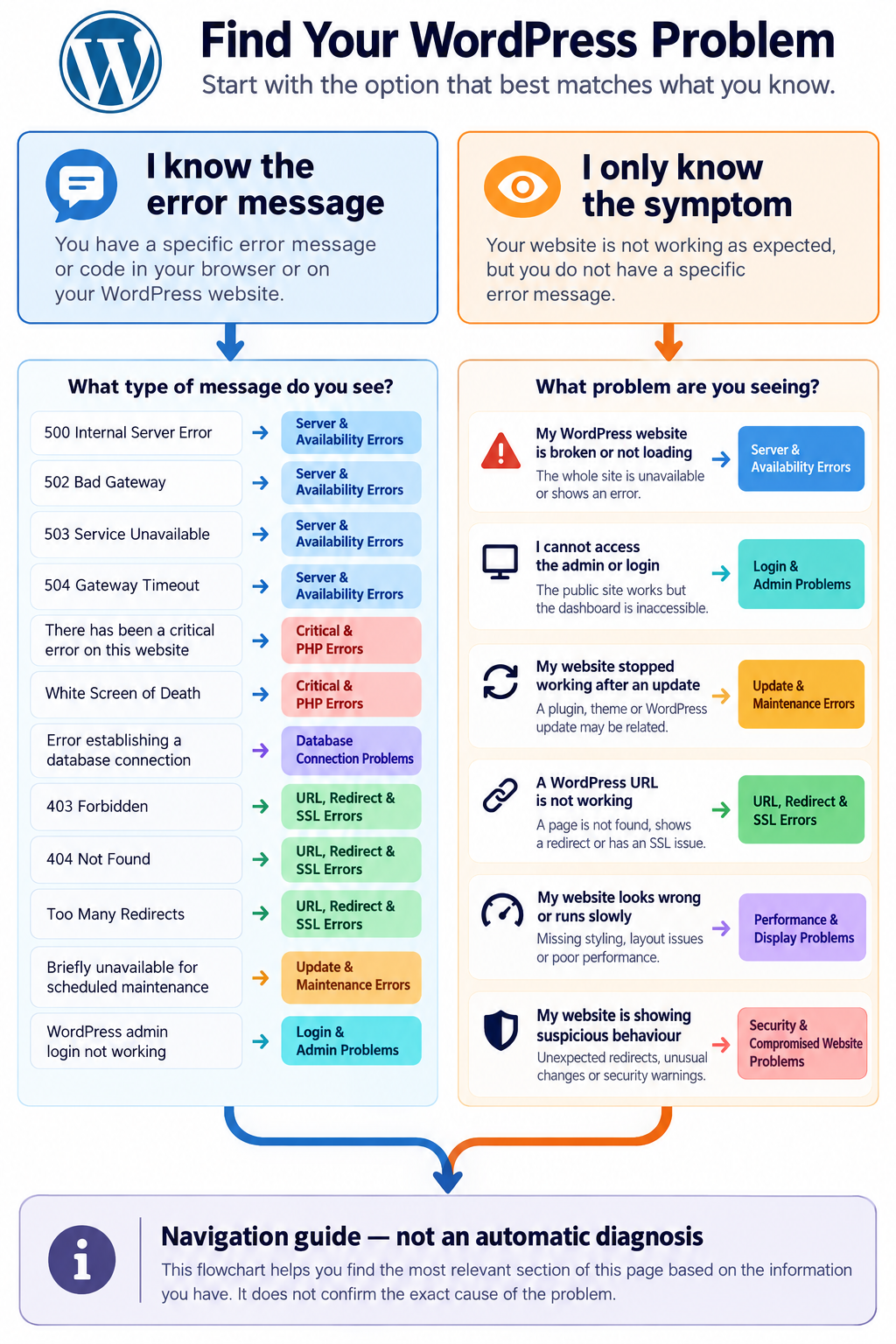
Find Your WordPress Problem
WordPress website issues do not always produce a clear error message. A WordPress website broken after a change may load without its styling, prevent access to the admin area or fail only at checkout. When someone says “WordPress broken” or “WordPress stopped working”, those descriptions are useful starting symptoms but not technical diagnoses.
Use the following symptom guide to narrow down the problem. These routes identify relevant areas to investigate; they do not confirm a diagnosis.
My WordPress Website Is Broken or Not Loading
If your WordPress website is broken or visitors cannot reach it, first establish whether the whole website is unavailable or only certain pages are affected. A broken WordPress site may show an HTTP error, a browser connection failure or a blank screen; each requires a different route.
- The entire website displays an error: Start with server and availability errors.
- WordPress displays a critical error: See critical and PHP errors.
- The browser says the website cannot be reached: Check the domain, hosting availability and network context before assuming WordPress is responsible.
- The homepage works but another URL fails: See URL, redirect and SSL errors.
My WordPress Admin or Login Is Not Working
If the public website loads but you cannot access the dashboard, the problem may involve authentication, permissions, redirects, security settings or a plugin conflict. Start with WordPress login and admin problems.
My WordPress Website Stopped Working After an Update
When WordPress stopped working immediately after a change, record exactly what was updated. A plugin, theme, WordPress core or PHP change may be relevant, but the timing alone does not prove the cause. See plugin, theme and update errors.
My WordPress URL Is Not Working
If a WordPress site URL is not working, identify the browser response before attempting a fix. Searches such as “wordpress site url not working”, “wordpress url not working” and “wordpress site not found” can describe different faults: an HTTP 404, an incorrect WordPress address, a redirect loop, DNS failure or an SSL certificate warning. These require different investigations.
Go to URL, redirect and SSL errors to distinguish these situations. If the browser reports “wordpress website cannot be reached”, check whether the domain resolves and the hosting service responds before changing WordPress settings.
My WordPress Website Looks Wrong or Runs Slowly
Missing styling, unexpected layouts, slow pages and delayed interactions may involve themes, plugins, caching, external resources or hosting performance. See performance and display problems.
My Website Is Showing Suspicious Behaviour
Unexpected redirects, unfamiliar administrator accounts, altered content or browser security warnings deserve careful investigation. See WordPress security problems. If compromise is suspected, avoid experimental changes that could destroy useful evidence.
Quick WordPress Troubleshooting: Match the Symptom to the First Check
This symptom-to-check table helps site owners avoid applying unrelated WordPress fixes. The first check is observational; it is not a substitute for a verified diagnosis.
| What you see | What to check first | Where to go |
|---|---|---|
| Whole website returns 500, 502, 503 or 504 | Exact status, affected URLs, host status and recent deployments | Server errors |
| Critical error or blank screen | Recovery email, recent PHP/plugin changes and available logs | Critical and PHP errors |
| Database connection message | Database service status and recent hosting changes | Database problems |
| Login fails but public pages work | Whether one user or all users are affected | Admin and login |
| Failure immediately after an update | Which component changed and whether recovery is available | Update errors |
| Single URL fails or redirects repeatedly | HTTP response, full URL and redirect chain | URL and SSL problems |
| Slow pages or missing styling | Page, device, recent changes and resource failures | Performance and display |
| Unexpected redirects or unfamiliar admins | Preserve evidence and assess access security | Security incidents |
Tip: Do not paste passwords, database credentials, private logs or access tokens into public troubleshooting forums.
Common WordPress Errors & Troubleshooting Guides
Different WordPress errors can look similar while involving completely different systems. Browse the categories below to understand where to investigate and which type of WordPress fix may be appropriate.
1. WordPress Server & Availability Errors
Server errors can interrupt access to a WordPress website or individual resources. The cause may involve application code, the web server, hosting infrastructure, upstream services or resource availability.
- 500 Internal Server Error: The server encountered a condition that prevented it from completing the request.
- 502 Bad Gateway: A gateway or proxy received an invalid response from an upstream server.
- 503 Service Unavailable: The service is temporarily unable to handle the request.
- 504 Gateway Timeout: A gateway or proxy did not receive a timely upstream response.
- Connection timeout: A request did not complete within the expected period.
How to distinguish them: Record the exact HTTP status or browser message and whether the problem affects the entire site. Do not assume that every server error is caused by WordPress itself.
Safe first check: Test the affected URL, note when the failure began and review any available hosting status information.
Next diagnostic step: If you have authorised hosting access, review the incident timeline and relevant server logs with your provider or developer. A 502 or 504 can involve an upstream service, while a 500 may require application-level investigation. Do not repeatedly restart production services without assessing the impact.
2. WordPress Critical Errors, PHP Failures & White Screens
A critical error can stop WordPress from completing part of its normal execution. You may see the message “There has been a critical error on this website”, a blank screen or a failed page request.
Common issues in this category include:
- WordPress critical error messages.
- WordPress White Screen of Death.
- PHP fatal errors.
- PHP memory-related failures.
- Compatibility problems involving themes, plugins or the PHP environment.
A blank screen does not establish that a plugin is responsible. The cause may require investigation using recovery information, appropriate logs or a controlled testing environment.
Safe first check: Look for a WordPress recovery email, record any recent changes and confirm that a recoverable backup is available before making potentially disruptive changes.
Next diagnostic step: Where a WordPress recovery email is available, follow its authorised recovery route. A developer may compare PHP compatibility, recent changes and protected error logs in staging. Avoid enabling public error display or sharing raw logs.
3. WordPress Database Connection Problems
WordPress needs a working database connection to retrieve much of its content and configuration. When that connection fails, the website may display “Error establishing a database connection”.
Possible areas of investigation include database service availability, connection configuration, hosting problems and database-related faults.
These are not situations where random database edits are advisable. Database changes can affect content and site operation, particularly when the underlying problem has not been established.
Safe first check: Record the exact message, check for a relevant hosting incident and confirm backup and restoration options before considering database-level work.
Next diagnostic step: Ask the hosting provider whether the database service is healthy. An authorised administrator can verify connection settings against known-good configuration without publishing credentials or making speculative edits.
4. WordPress Login & Admin Dashboard Problems
WordPress admin problems may occur even when the public-facing website is working. Some affect a single user account; others affect every administrator.
- Cannot access WordPress admin or
wp-admin. - WordPress login page not loading.
- Repeated login redirects.
- WordPress admin displaying 403 Forbidden.
- Dashboard pages showing errors or incomplete content.
- Permission and authentication problems.
How to distinguish them: Check whether the login page opens, whether authentication succeeds and whether the issue affects one account or multiple users.
Safe first check: Record the message and test whether the behaviour is limited to a particular browser session. Avoid bypassing access restrictions or disabling security controls without understanding their purpose.
Next diagnostic step: Confirm the affected account and whether the issue is browser-specific, a redirect problem or an access-control response. Use supported account recovery methods; do not bypass authentication or weaken security controls.
5. WordPress Plugin, Theme & Update Errors
Plugins and themes can introduce conflicts, but a problem that appears after an update may also involve the hosting environment, PHP compatibility or an existing configuration issue.
Common WordPress issues in this category include:
- WordPress plugin conflicts.
- Theme errors and broken layouts.
- Failed WordPress updates.
- WordPress stuck in maintenance mode.
- Plugin installation or activation failures.
- Problems after a PHP version change.
- Page builder errors following an update.
How to distinguish them: Identify the exact component changed, the previous and current behaviour, and whether the problem occurs across the site or within one feature.
Safe first check: Review the change history and test potentially disruptive corrections in staging where possible. Avoid disabling several business-critical plugins at once on a live website.
Next diagnostic step: Record the changed component and its version. Check compatibility notes and a recent backup before testing a rollback or controlled isolation in staging. A persistent maintenance message after a failed update needs a different response from expected brief maintenance.
6. WordPress 403, 404, Redirect & SSL Errors
When a WordPress URL is not working, the visible message is an important clue. Access restrictions, missing pages, redirect loops, domain configuration and HTTPS problems should not be treated as one fault.
- 403 Forbidden: Access to the requested resource is denied.
- 404 Not Found: The requested resource could not be found.
- Too Many Redirects: The browser encounters a redirect loop.
- Mixed Content: An HTTPS page requests resources over HTTP.
- SSL certificate warning: The browser cannot establish or trust the expected secure connection.
- Website cannot be reached: A broader connection failure that may involve DNS, networking or hosting rather than a WordPress 404 response.
If your WordPress site is not found, determine whether the browser is receiving an HTTP 404 response or failing to connect to the website at all. This distinction prevents irrelevant troubleshooting.
Safe first check: Record the complete affected URL, exact browser message and whether the issue affects one page or the entire domain.
Next diagnostic step: For 404 errors, check whether only one page is missing; for redirect loops, inspect the redirect path and URL settings; for SSL warnings, review certificate and HTTPS configuration with the host. Do not change permalink, DNS and SSL settings together.
7. WordPress Performance, Caching & Display Problems
A WordPress website can be technically available but still provide a poor experience. Slow loading, delayed interactions, unstable layouts and missing visual elements can affect how visitors use the site.
Areas to investigate include:
- Slow server responses.
- Plugin and theme resource usage.
- Caching and content delivery configuration.
- Large images and other page resources.
- JavaScript or CSS delivery problems.
- Core Web Vitals such as LCP, INP and CLS.
Performance measurements need context. A single laboratory test does not prove that all visitors experience the same problem, and a poor score does not identify one definitive cause.
Safe first check: Identify the affected pages, compare mobile and desktop behaviour where relevant and check whether the problem began after a specific change.
Next diagnostic step: Compare affected templates and devices, review failed asset requests and measure performance using both available field data and repeatable laboratory tests. Use changes that can be reverted, and re-test important user journeys.
8. WordPress Security & Compromised Website Problems
Some common WordPress problems involve security rather than ordinary functionality. Suspicious redirects, unexpected file changes, unfamiliar administrator accounts and browser warnings may indicate a security incident.
Relevant symptoms include:
- Unexpected redirects to unfamiliar websites.
- Suspected malware or malicious code.
- Unrecognised administrator accounts.
- Unexpected changes to website content.
- Security warnings shown to visitors.
- Possible unauthorised access.
Not every suspicious symptom confirms that a website has been hacked. However, possible compromise requires a cautious response because website integrity, credentials or customer information may be affected.
Safe first check: Preserve relevant evidence, secure access through appropriate procedures and involve the hosting provider or a qualified security specialist where necessary. Do not delete unfamiliar files without understanding their purpose.
Next diagnostic step: Follow an incident response process: preserve logs and evidence, assess whether credentials or customer data are at risk, and coordinate containment with your hosting or security team. If personal data may be involved, assess applicable notification duties with a qualified adviser.
Find a WordPress Error by Message or Code
If WordPress displays a specific message, use its exact wording to identify the relevant category. The following index covers frequently encountered error types and symptoms, but it is not an exhaustive list of every WordPress error.
| Error message or code | Where to investigate |
|---|---|
| 500 Internal Server Error | Server & Availability Errors |
| 502 Bad Gateway | Server & Availability Errors |
| 503 Service Unavailable | Server & Availability Errors |
| 504 Gateway Timeout | Server & Availability Errors |
| There has been a critical error on this website | Critical & PHP Errors |
| White Screen of Death | Critical & PHP Errors |
| Error establishing a database connection | Database Connection Problems |
| 403 Forbidden | URL & Access Errors |
| 404 Not Found | URL & Redirect Errors |
| Too Many Redirects | Redirect Errors |
| Briefly unavailable for scheduled maintenance | Update & Maintenance Problems |
| WordPress admin login not working | Login & Admin Problems |
| WordPress website cannot be reached | Availability & Connection Problems |
Some entries above are exact messages or HTTP codes, while others are common names for symptoms. A browser connection failure, for example, is not necessarily a WordPress-generated error.
If you cannot identify the message, return to Find Your WordPress Problem and choose the closest symptom.
Additional WordPress Errors Worth Recognising
Not all WordPress errors are covered by the most familiar HTTP codes. You may also encounter a WordPress memory exhausted error, a REST API error, an invalid JSON response when saving content, a 429 Too Many Requests response or a 508 Resource Limit Is Reached response on some hosting environments. The exact meaning depends on the software, hosting configuration and response source.
For memory-related failures, record the precise PHP message and ask a qualified developer to check the actual limit and underlying workload before raising it. For REST API or JSON response problems, note the failing action and inspect the relevant request response with authorised tools. For 429 or 508 responses, check rate limits, hosting resource information and any protective services. Do not assume these messages have one universal WordPress fix.
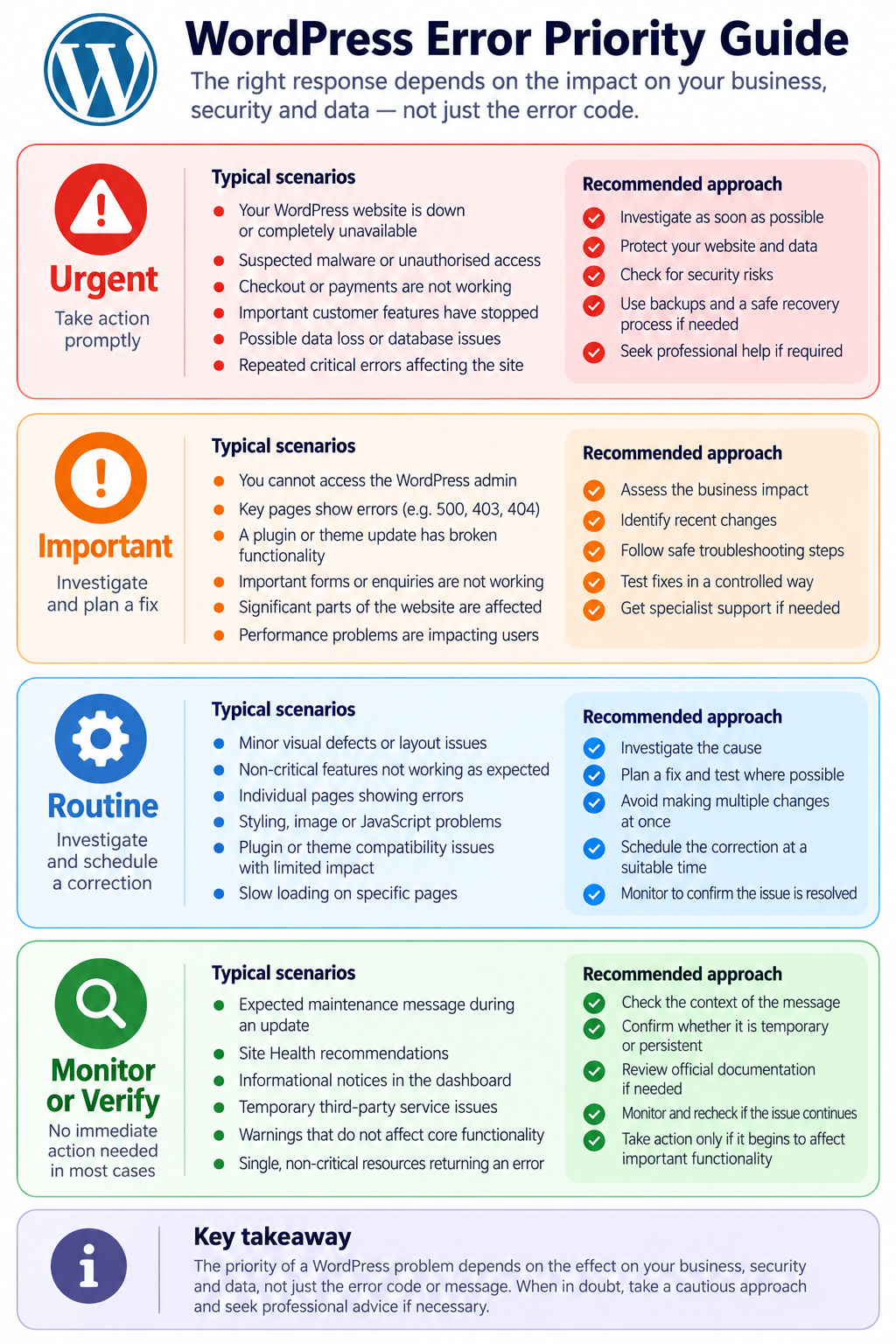
Which WordPress Problems Need Urgent Attention?
Not every WordPress error needs an emergency response. The priority depends on the effect on visitors, business operations, security and data integrity.
| Priority | Example | Recommended approach |
|---|---|---|
| Urgent | Business website unavailable, suspected compromise, possible data loss or an essential transaction process failing. | Investigate promptly, protect relevant systems and obtain appropriate technical assistance. |
| Important | Admin access unavailable, important pages returning errors, or a key feature broken after an update. | Record the issue, assess business impact and plan controlled troubleshooting. |
| Routine | Limited visual defects or a non-critical feature behaving unexpectedly. | Investigate and schedule a safe correction. |
| Monitor or verify | Expected maintenance behaviour or an informational diagnostic notice without a confirmed failure. | Check the context before changing anything. Immediate action may not be necessary. |
A 404 response on an important landing page may deserve more attention than a temporary warning affecting a non-essential resource. Similarly, a checkout failure may be business-critical even when the homepage works normally.
Do not judge severity by the error code alone. Assess what is affected and whether security, transactions, data or essential access are at risk.
How to Troubleshoot WordPress Without Making the Problem Worse
For Website Owners: Confirm the Business Impact
Before trying to fix WordPress website errors, check whether visitors can reach the website, submit forms, book services or complete checkout. Record the time and exact message. If the site is generating revenue or handling sensitive information, ask the responsible provider or developer to assess changes before attempting repairs on the live system.
For Developers and Site Administrators: Isolate One Variable
For authorised WordPress website troubleshooting, compare a known-good state with the current state, identify relevant logs and requests, and reproduce the fault in staging when feasible. Change one relevant variable at a time, document the result and maintain a tested rollback path. Never treat a symptom or a temporal association as proof of root cause.
When a Quick WordPress Fix Is Not Appropriate
Some WordPress fixes appear simple but can worsen data loss, compromise or outages. A payment failure, suspected breach or unstable database needs a controlled response rather than a collection of unrelated plugin-disabling tips. Escalate when the cause is unclear or the potential damage is high.
WordPress Website Troubleshooting: Safe First Checks
Before attempting WordPress fixes, gather enough information to understand the problem. Changing several settings at once can make it difficult to identify what caused the failure or whether a correction worked.
- Record the exact symptom. Save the error message, affected URL, approximate start time and relevant browser behaviour.
- Identify the affected area. Check whether the issue affects the whole website, a single page, the dashboard or a particular function.
- Review recent changes. Note updates, plugin installations, theme changes, hosting adjustments and newly connected services.
- Check relevant external services. Where appropriate, look for hosting, DNS or third-party service interruptions.
- Confirm backup and recovery options. Check that a suitable backup exists and that there is a realistic way to restore the site.
- Use staging where possible. Test changes that could interrupt live services in a controlled environment.
- Make targeted changes. Keep a record of what was changed and how it can be reversed.
- Verify the result. Test the original problem and important related workflows rather than checking only the homepage.
For suspected security incidents, possible data loss or live payment failures, ordinary trial-and-error troubleshooting may be inappropriate. Follow a suitable incident or recovery process instead.
When a WordPress Warning Does Not Mean the Website Is Broken
Some WordPress messages are informational or relate to planned activity. For example, a maintenance message may be expected during a controlled update, and a Site Health recommendation may identify an improvement rather than an immediate outage.
However, an expected temporary state becomes a problem if it persists unexpectedly or prevents essential work. Check the context and duration before deciding whether intervention is needed.
Common Troubleshooting Mistakes
- Assuming one symptom has only one possible cause.
- Disabling several plugins simultaneously without a controlled test.
- Editing production code or database settings without a recovery plan.
- Deleting files during a suspected security incident.
- Disabling security protections merely to regain access.
- Exposing debugging logs containing credentials or sensitive information.
- Checking only the homepage after making a change.
- Applying instructions written for a different platform, plugin or environment.
The right WordPress troubleshooting process should reduce uncertainty and risk, not introduce additional failures.
Official WordPress Troubleshooting Tools & Resources
WordPress provides diagnostic features and official documentation that can help identify potential problems. These resources support investigation; they do not automatically repair a website or prove a particular root cause.
WordPress Site Health
The Site Health screen, available through Tools → Site Health on supported WordPress installations, provides checks and information about the website’s environment and configuration.
It can help identify areas requiring attention, but its results should be interpreted in context. A Site Health recommendation does not necessarily explain an unrelated error.
Official resource: WordPress Site Health Screen.
WordPress Debugging
WordPress debugging facilities can help developers investigate PHP errors and other diagnostic information. Appropriate access and technical understanding are required.
Debugging should be configured carefully. Displaying errors publicly or exposing log files may reveal information that should remain private.
Official resource: Debugging in WordPress.
Common WordPress Errors Documentation
The official WordPress developer documentation covers a range of recognised error conditions and troubleshooting considerations.
Official resource: Common WordPress Errors.
WordPress Troubleshooting FAQ
The WordPress documentation also provides broader troubleshooting guidance for identifying and investigating website problems.
Official resource: WordPress Troubleshooting FAQ.
Choose documentation relevant to the actual error and environment. If your issue involves a particular plugin, hosting provider or external integration, that product’s documentation may also be necessary.
When to Get Professional WordPress Help
Some WordPress website issues can be investigated through simple observations and safe checks. Others require server access, log analysis, database knowledge, application debugging or specialist security expertise.
Consider professional support when:
- Your WordPress website remains unavailable.
- A critical error keeps returning.
- You cannot access the dashboard and ordinary recovery options are unavailable.
- A plugin or theme update has affected essential functionality.
- Visitors cannot complete important enquiries, bookings or transactions.
- You suspect malware or unauthorised access.
- You are unsure whether a proposed change could affect website data.
- Previous troubleshooting attempts have made the situation worse.
Prime Lion Digital offers Website Help & Solutions for businesses needing technical website assistance. Services start from £200, with the actual scope and price depending on the issue and work required.
Before requesting assistance, prepare the affected website address, exact error message, relevant screenshots, recent changes and a short description of the business impact. Remove passwords, access tokens and other sensitive information from anything you share through a normal enquiry.
Frequently Asked Questions About WordPress Errors
What are the most common WordPress errors?
Common WordPress errors include 500 Internal Server Error, critical error messages, database connection failures, 403 and 404 responses, redirect loops, login problems and failed updates. The issues encountered depend on the website’s configuration, hosting environment and installed components.
How do I troubleshoot a broken WordPress website?
Start by recording the exact symptom, checking which parts of the site are affected and reviewing recent changes. Confirm backup and recovery options before attempting potentially disruptive fixes. Use the relevant error category rather than applying unrelated instructions.
Why has my WordPress website suddenly stopped working?
A website may stop working because of an application error, failed update, plugin conflict, database issue, hosting interruption or external dependency. Recent changes provide useful clues, but further investigation may be needed to confirm the cause.
What should I check before attempting WordPress fixes?
Check the exact error message, affected URLs, recent changes, hosting status where relevant, backup availability and whether a safe testing environment exists. Avoid editing live systems without understanding the risks.
Can WordPress errors affect SEO?
Yes. Persistent server failures, inaccessible pages, broken redirects and other technical problems can interfere with crawling, indexing or access to website content. The effect depends on the nature, duration and extent of the problem. A brief error does not automatically mean rankings will decline.
Do all WordPress warnings need to be fixed?
No. Some notices describe expected behaviour or recommended improvements rather than immediate failures. Review what the message means, whether essential functions are affected and whether the condition is temporary or persistent.
Why does my WordPress site say “site not found”?
“WordPress site not found” may refer to an HTTP 404 for one page, a domain that does not resolve or a browser connection failure. Check the exact response and whether other pages on the same domain load before choosing a fix.
What if my WordPress URL is not working after a migration?
When a WordPress URL is not working after a migration, check which addresses fail and whether the problem involves DNS, redirects, HTTPS, site configuration or missing content. Preserve a rollback option before making changes to a live site.
Are WordPress problems and WordPress issues always caused by plugins?
No. Common WordPress issues may involve hosting, PHP, database services, permissions, themes, external services, configuration or security. A plugin conflict is only one possible explanation.
Where can I find reliable WordPress fixes?
Start with the exact message, the relevant category on this page and official WordPress or provider documentation. Choose instructions that match your version and environment, and test disruptive changes safely. There is no single set of WordPress fixes that applies to every failure.
When should I contact a WordPress specialist?
Seek specialist help when the issue affects important business functions, involves suspected compromise or possible data loss, requires access or expertise you do not have, or persists after appropriate safe checks.
Get Help With WordPress Errors & Website Problems
If your WordPress website is broken, showing repeated errors or preventing customers from using an important feature, identifying the cause is the first step towards a reliable correction.
Prime Lion Digital can help assess WordPress problems and determine an appropriate technical approach, from troubleshooting individual issues to more involved website repair work.
Need professional assistance? Explore Website Help & Solutions from Prime Lion Digital.