Google Search Console Errors
Tell us a little about what you’re looking for, and our team will be in touch to discuss how we can help.
Seeing Google Search Console errors, unexpected indexing statuses or warnings you do not understand? Use this guide to identify the report, recognise the message and decide what to check next. Find help with crawling, sitemaps, missing pages, canonical URLs, structured data and security. Not every excluded page or warning needs fixing: the right action depends on the URL, your intentions and the impact on your website.
Find your error or symptom | Browse error categories | Look up a status message
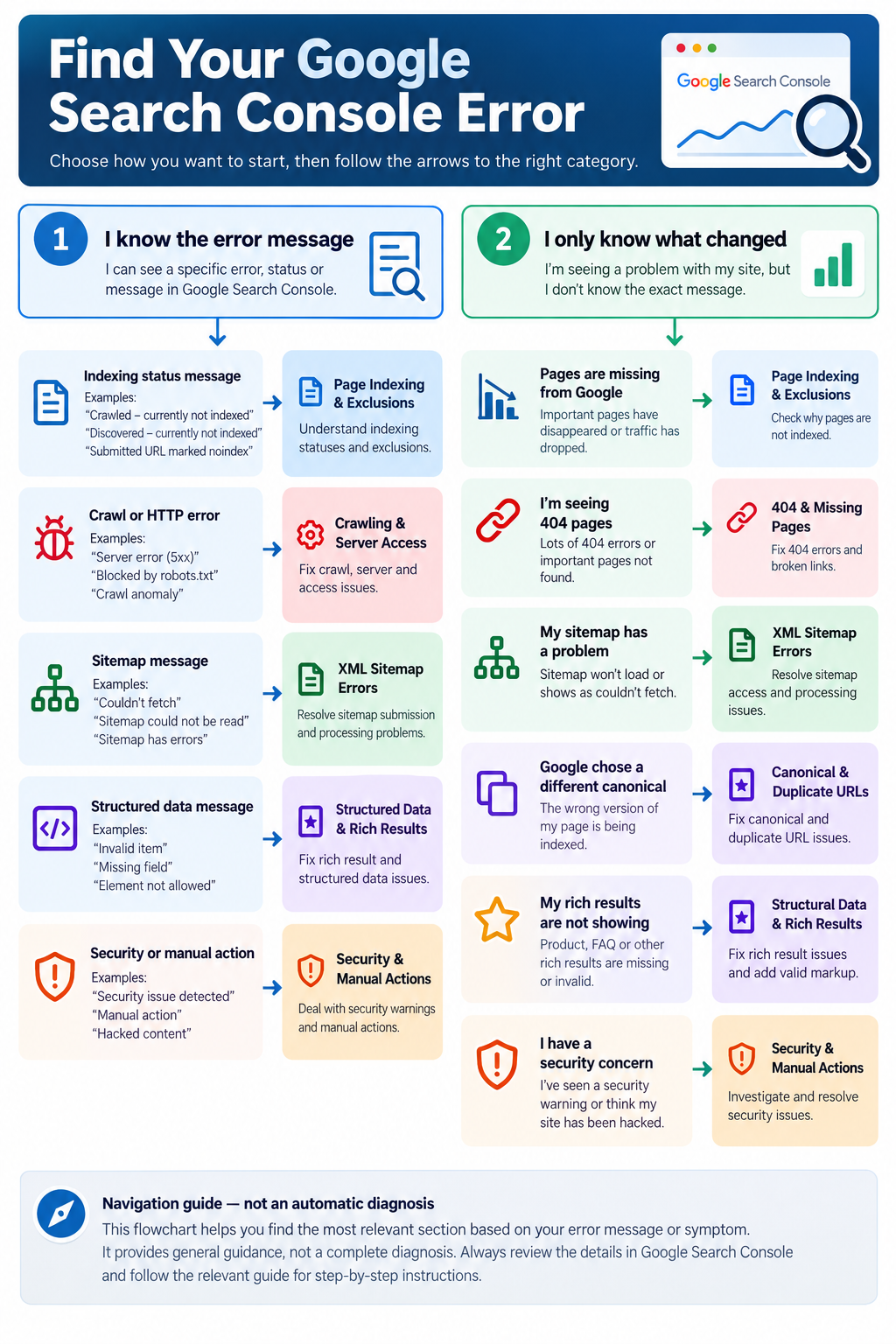
Find Your Google Search Console Error
Start with what you know. A message in Search Console is a useful clue, but it does not by itself prove why a page has a problem. Check the affected URL and the relevant report before making changes.
Quick diagnosis: choose the report before changing the website
When you see Google console errors or search for Google search errors, first identify whether the alert comes from Page Indexing, Sitemaps, a rich-result enhancement, Core Web Vitals, Security Issues or Manual Actions. A Google Search Console issue may describe an expected indexing decision rather than a defect. Confirm the property, exact URL, report name and date of the last crawl before choosing a fix.
| What you observe | Evidence to check | Safe next step |
|---|---|---|
| Important page missing from search | URL Inspection: indexed status, live test, robots directives and Google-selected canonical | Investigate indexing |
| Googlebot cannot retrieve pages | HTTP response, server logs, robots.txt and Crawl Stats | Investigate crawling |
| Sitemap reports Couldn’t fetch | Submitted URL, HTTP status, XML response and report details | Investigate the sitemap |
| URL missing or redirected unexpectedly | Original URL, response status, destination and internal links | Check 404s or redirects |
| Structured data or page experience warning | Supported feature, affected URL group, error versus warning | Check markup or performance |
Before requesting help: note the URL, issue wording, affected template, last crawl date and whether the page should appear in Google. Do not share property access tokens or confidential screenshots.
I know the error message
Match the wording to the error and status index. An indexing exclusion belongs in Page Indexing; a sitemap retrieval message belongs in XML Sitemaps; and an invalid enhancement belongs in Structured Data & Rich Results. If the message relates to security or a manual action, go directly to Security & Manual Actions.
I only know what has changed
- Important pages are missing from Google: start with indexing and exclusions, then check crawling and canonical selection.
- Google cannot retrieve a sitemap: go to XML sitemap errors.
- Visitors or Google reach missing URLs: go to 404 and missing pages.
- Google selects a different URL: go to canonical and duplicate URLs.
- Search appearance reports show invalid items: go to structured data.
- Google warns of harmful content or policy violations: go to security and manual actions.
Common Google Search Console Errors & Issues
These categories group related reports by the decision you need to make. Some problems overlap: for example, a server error can prevent crawling and eventually affect indexing. Choose the category closest to the evidence you can see, rather than assuming a single cause.
1. Page Indexing & Exclusions
The Page Indexing report explains why known URLs are indexed or not indexed. Messages such as Crawled – currently not indexed and Discovered – currently not indexed describe different stages of Google’s discovery and crawling process. They do not automatically mean the page is technically broken. Start by asking whether the URL is an important, canonical page that you actually want in search results.
If a valuable page is unexpectedly excluded, inspect that exact URL, check its current indexability and compare the live page with the information Google last recorded. For an intentionally excluded thank-you page, internal search page or alternative URL, no change may be necessary. See Google’s Page Indexing report documentation.
How to troubleshoot a page that should be indexed
- Confirm the URL returns a successful, indexable response and is not blocked by an unintended
noindexdirective, including an HTTPX-Robots-Tagheader. - In URL Inspection, distinguish Google’s indexed version from the live test. They can reflect different points in time.
- Check the user-declared and Google-selected canonical, internal links, sitemap inclusion and whether the page contains distinct, useful content.
- For Discovered – currently not indexed, Google knows about the URL but may not have crawled it yet; do not describe it as a confirmed crawl failure. For Crawled – currently not indexed, Google has crawled the page but has not indexed it.
- Fix a verified technical problem first. If no technical blocker is found, evaluate page purpose, duplication and content quality without assuming that a particular edit guarantees indexing.
Noindex diagnostic: inspect both HTML meta robots and response headers. A robots.txt block can prevent Google from seeing a page’s noindex directive, so these controls are not interchangeable. An intentionally noindexed page does not need to be forced into the index.
2. Crawling & Server Access Errors
Google Search Console crawl errors can indicate that Googlebot could not reliably retrieve content. Relevant signals include Server error (5xx), access restrictions, DNS or hosting failures, and robots.txt rules. A server response is not the same thing as an indexing decision: first establish whether Google could access the URL at all.
For a significant crawl failure, check the affected URL and its HTTP response, the timing of any hosting incident and whether the problem affects many important pages. Use the URL Inspection tool for individual URLs and the Crawl Stats report for broader patterns. Do not remove security controls or change robots.txt simply to clear a warning.
Googlebot crawl error checks
When researching Google crawl errors or Search Console crawl errors, separate DNS and connection failures, HTTP 403 or 5xx responses, robots.txt restrictions and URLs that simply have not been crawled. The search phrase crawl errors Google Search Console commonly refers to these report findings, but Search Console no longer presents every historic crawl-error label in one old-style report.
- Check the exact URL’s HTTP response, not only the homepage. Compare an affected page with an unaffected one.
- Use Crawl Stats to identify changes in host status, response codes and crawl volume; use authorised server logs if the cause remains unclear.
- Check whether a firewall, CDN, authentication rule or bot protection is blocking legitimate crawling. Never disable protection globally as a first experiment.
- Investigate persistent 5xx responses with hosting or application logs. A temporary 5xx does not establish a permanent indexing problem.
For site-wide WordPress faults, see WordPress Errors & Fixes. Prioritise URLs that are important to users and business outcomes rather than trying to eliminate every crawl statistic.
3. 404 & Missing Page Errors
Google Search Console 404 errors may involve a deleted page, an incorrect internal link, an outdated external link or a URL that was never meant to exist. A genuine 404 Not Found is appropriate for content that no longer exists and has no suitable replacement. A Soft 404 describes a different situation: a URL may appear to be an error or empty page without returning the expected HTTP status.
For Google Search Console broken links, check whether the missing URL is still linked internally and whether a genuinely relevant replacement exists. Repair broken navigation and redirect moved content when appropriate, but do not redirect every missing URL to the homepage. A 404 entry alone is not evidence of a site-wide SEO emergency.
404, soft 404 or 410: choose the right outcome
| Situation | Recommended approach |
|---|---|
| Page moved and has a genuinely equivalent replacement | Use a relevant permanent redirect and update internal links. |
| Content permanently removed without a suitable replacement | A 404 or 410 may be appropriate; remove outdated internal links and sitemap entries. |
| Page exists but returns an error-like or empty result with HTTP 200 | Investigate possible soft 404 behaviour, rendered content and server status. |
| Important page unexpectedly returns 404 | Restore the intended page or correct the route, permalink or deployment issue. |
For Google Search Console 404 errors and Google Search Console broken links, focus on URLs that should work or receive meaningful internal traffic. Avoid mass redirects to the homepage: they can confuse users and may be treated as soft 404s.
4. XML Sitemap Errors
A sitemap helps Google discover URLs; submitting one does not guarantee that its pages will be crawled or indexed. If Google Search Console says Couldn’t fetch, first check whether the submitted sitemap URL is accessible and returns the expected XML content. Access restrictions, server responses, redirects and malformed content may be relevant, but the message alone does not identify the cause.
Compare the exact submitted address with the sitemap currently generated by your CMS or SEO plugin. Check the official Sitemaps report guide before changing settings. If the sitemap is accessible in your browser but Search Console still reports a failure, investigate Google’s report details and allow for processing delays rather than repeatedly resubmitting without evidence.
Google Search Console Couldn’t Fetch Sitemap: step-by-step checks
If you search for Google Search Console couldn’t fetch sitemap, start with the exact sitemap submitted to Search Console, not a similarly named file. An accessible browser page alone does not establish that Google retrieved and processed the XML successfully.
- Open the submitted sitemap URL and verify the HTTP status, final destination and whether the response is XML rather than an HTML error, login screen or challenge page.
- Check that the sitemap is well formed, uses the expected sitemap or sitemap-index format, and references the intended canonical URLs.
- Investigate intermittent 403/5xx responses, firewall challenges, authentication and redirects where supported by evidence.
- Review the Sitemaps report’s last read and error details. If a correction was made, allow time for reprocessing; avoid repeated resubmission as a substitute for diagnosis.
Important: an XML sitemap is a discovery aid, not a promise that Google will crawl or index every listed URL.
5. Canonical & Duplicate URL Issues
Google may discover multiple URLs with substantially similar content and choose one as the canonical version. Reports about duplicate URLs or a Google-selected canonical different from the user-declared canonical are not automatically errors. The important question is whether Google is selecting the page that best represents the content you want indexed.
Check the declared canonical, internal links, redirects, sitemap inclusion and actual page content together. A canonical tag is a signal, not a command. Avoid changing canonical tags across a site simply because some alternative URLs are excluded.
Declared canonical versus Google-selected canonical
In URL Inspection, compare the canonical declared by the website with Google’s selection. If they differ, examine internal links, redirects, duplicate or near-duplicate content, HTTPS preference and sitemap URLs as a group. A canonical tag is a strong signal but not an instruction Google must obey. For intentionally duplicated URLs, Google’s choice may be reasonable and require no action.
6. Redirect Problems
Redirected URLs often appear as not indexed because Google is expected to consider the destination instead. A genuine Redirect error is different: Google may be unable to follow the redirect path. Possible contexts include loops, excessively long chains or inaccessible destinations.
Check the source URL, every hop and the final destination before changing redirect rules. If an old URL correctly redirects to its intended replacement, that is generally expected behaviour. If important links point through broken redirect paths, investigate the specific chain and its impact.
Safe redirect diagnosis
Check the original URL, each intermediate response and the final landing page. Identify loops, broken destinations and unnecessary chains. Where content genuinely moved, prefer a direct relevant redirect and update important internal links to the final URL. A normal redirected URL being excluded from indexing is not itself a failure.
7. Structured Data & Rich Result Errors
Search Console may report invalid or incomplete structured data for supported search features. These reports concern eligibility for particular rich-result experiences, not necessarily whether the page itself can be indexed. A Product or Merchant listings warning, for example, should be assessed against the type of page and the markup actually present.
Use the Rich Results Test to check supported rich-result types and the Schema.org Validator for broader schema syntax and relationships. Do not invent prices, ratings or reviews merely to satisfy a validation message. Fix the underlying page or remove inapplicable markup instead.
Errors, warnings and eligibility
First identify the specific rich-result feature and the exact invalid field. An error may prevent an item from being eligible for that feature; a warning may identify a recommended but non-required property. Rich Results Test covers Google’s supported features, while Schema.org Validator covers broader schema structure. Neither guarantees that Google will display a rich result. Only mark up facts genuinely present on the page; never fabricate reviews, ratings or offers.
8. Core Web Vitals & HTTPS Issues
Core Web Vitals reports help identify groups of pages with poor real-user experience, while HTTPS reporting can highlight problems with secure delivery. These are not the same as page indexing errors. A URL may be indexed while still needing performance improvements, and a missing field-data result does not by itself prove a failure.
Review the affected URL group, mobile or desktop context and available field data before prioritising work. Use PageSpeed Insights for additional diagnostic context, remembering that lab results and field measurements answer different questions. Treat HTTPS issues that affect safe access to important pages as higher priority than a minor presentation warning.
Read Core Web Vitals evidence correctly
Check Largest Contentful Paint (LCP), Interaction to Next Paint (INP) and Cumulative Layout Shift (CLS) using the relevant mobile or desktop report. The Core Web Vitals report groups similar URLs based on available field data; it is not a direct diagnosis of one plugin or script.
In PageSpeed Insights, explicitly check whether real-user data is for This URL or the broader Origin. If a page lacks enough field data, origin-level data may appear instead. A missing field-data result is not a failed performance test. Lab diagnostics can guide investigation but should not be confused with actual user-experience measurements.
9. Security Issues & Manual Actions
Security Issues and Manual Actions are separate Search Console reports. A security issue may involve hacked content, deceptive pages or harmful downloads. A manual action indicates that Google has applied a specific enforcement measure after reviewing a site. Neither should be treated as a routine indexing exclusion.
Read the exact notice in your verified Search Console property and assess the affected scope. Preserve evidence, restrict unnecessary access and involve an appropriately qualified specialist when compromise is suspected. Avoid publicly sharing credentials, private customer data or unredacted logs. Use Google’s Security Issues guidance and Manual Actions guidance for the relevant process.
Security warning versus manual action
Use the exact notice and affected examples in the relevant Search Console report. A security warning may require incident containment, malware removal and verification before requesting review; a manual action requires addressing the stated policy issue and following the applicable reconsideration process. Do not use an ordinary indexing validation workflow as a substitute for a security review or reconsideration request.
Google Search Console Error Messages & Status Index
Use this index to identify the relevant report. Wording can differ between reports and may change as Google’s interface evolves; always rely on the message shown in your own property. These are navigation cues, not diagnoses.
| Message or status | What to check first | Category |
|---|---|---|
| Crawled – currently not indexed | Whether the inspected page is important, indexable and the intended canonical | Indexing |
| Discovered – currently not indexed | Whether Google has crawled the URL and whether access is reliable | Indexing |
| Excluded by ‘noindex’ tag | Whether noindex was intentional | Indexing |
| Blocked by robots.txt | Whether crawling is intentionally restricted | Crawling |
| Server error (5xx) | Current server response and incident scope | Crawling |
| Not found (404) | Whether the URL should still exist | 404 |
| Soft 404 | Actual page content and HTTP response | 404 |
| Couldn’t fetch (sitemap) | Submitted sitemap address and accessibility | Sitemaps |
| Duplicate, Google chose different canonical than user | Canonical signals and intended preferred URL | Canonicals |
| Redirect error | Redirect path and destination | Redirects |
| Invalid structured data item | Feature type and exact reported field | Structured data |
Some older articles refer to Submitted URL marked ‘noindex’. If you encounter that wording, investigate whether an intended indexable URL has a noindex directive; do not assume the current Search Console interface uses that exact label.
Important terminology: older tutorials sometimes use historic report labels. Compare their meaning with the wording currently displayed in your property. For example, Submitted URL marked noindex is an older label; the practical check is whether an intended indexable page is carrying a noindex directive.
Need help identifying the cause? If several important URLs show conflicting indexing or crawling signals, explore Prime Lion Digital’s Website Help & Solutions before making broad changes to live settings.
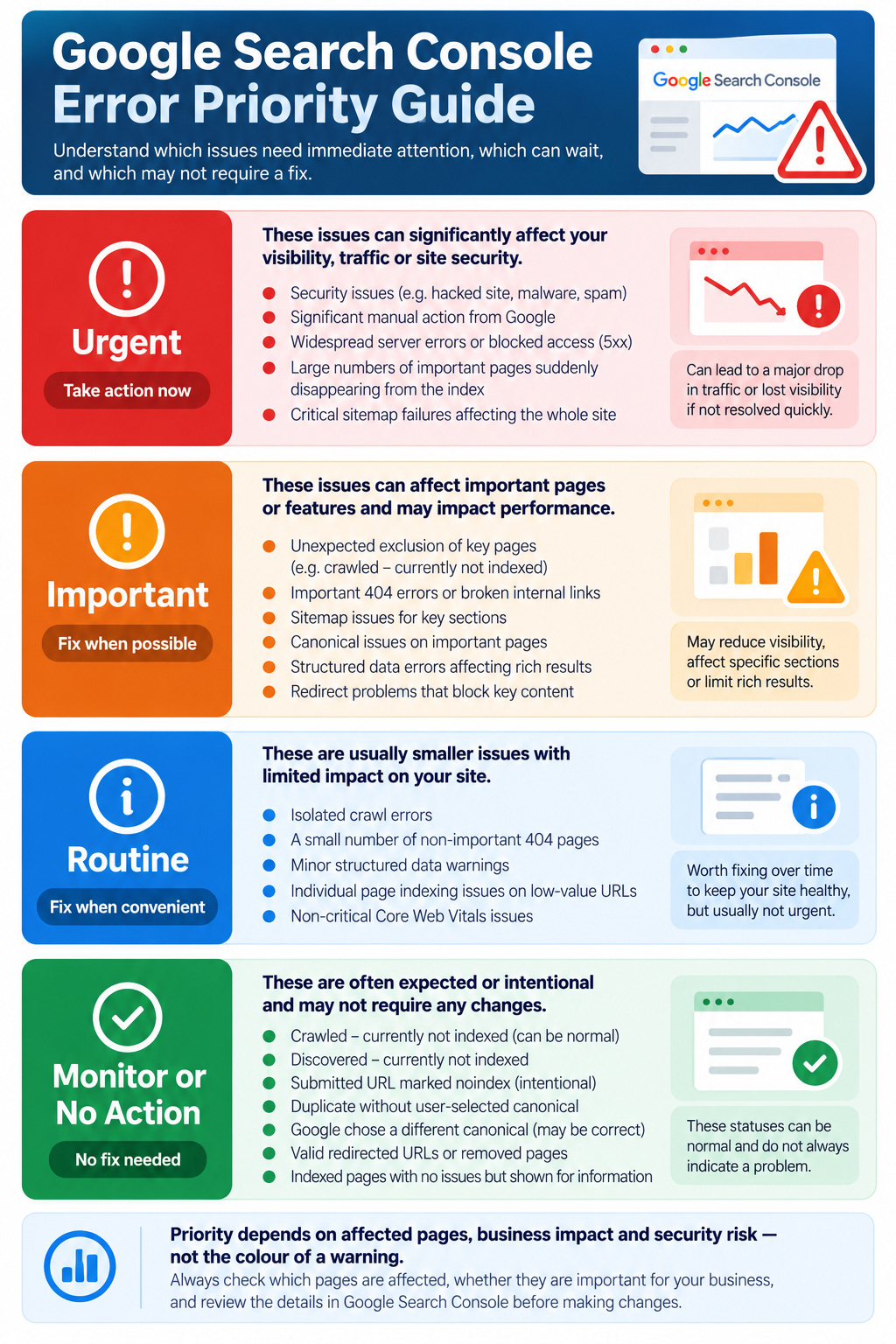
Which Google Search Console Errors Need Attention?
Prioritise according to the affected pages, business impact, security risk and evidence of a real problem. A red warning or large number in a report is not a reliable urgency score by itself.
| Priority | Examples | First response |
|---|---|---|
| Urgent | Suspected compromise, a material manual action, widespread server failure affecting essential pages, unexpected site-wide noindex | Confirm scope, preserve evidence, restrict risky changes and escalate appropriately |
| Important | Key landing pages unexpectedly excluded, broken important redirects, inaccessible main sitemap with related discovery concerns | Inspect representative URLs and identify the affected template or configuration |
| Routine | Isolated broken old link, non-critical rich-result field, small group of low-impact page experience issues | Schedule targeted verification and maintenance |
| Monitor or no action | Intentional noindex, correctly redirected old URL, legitimate canonical alternative, removed content returning 404 | Confirm the behaviour matches your intent; avoid unnecessary changes |
Safe First Checks Before Fixing Search Console Errors
- Confirm the property and URL. Check that you are looking at the correct domain or URL-prefix property and the exact affected address, including protocol and trailing slash where relevant.
- Read the report context. Note the issue label, affected URL examples, detection period and whether the report is about indexing, enhancements, performance or security.
- Inspect a representative URL. Compare the indexed information with a live inspection where available. A successful live test does not guarantee that Google will index the page.
- Decide whether the outcome is intended. Check noindex, canonical selection, redirects and whether the page should exist.
- Assess scope. One old deleted URL needs a different response from a sudden problem affecting all core service pages.
- Record changes before acting. Keep a current backup where appropriate, use staging for risky template or plugin changes and know how to roll back.
- Protect sensitive information. Remove tokens, passwords, customer details and private URLs from screenshots or logs shared with support.
- Verify and monitor. Recheck the affected page, relevant report and live behaviour after a targeted correction.
Do not bulk-remove noindex directives, rewrite canonical tags, modify robots.txt or redirect large groups of URLs simply to reduce the number of warnings. Each change needs a defined reason and a way to confirm that it helped.
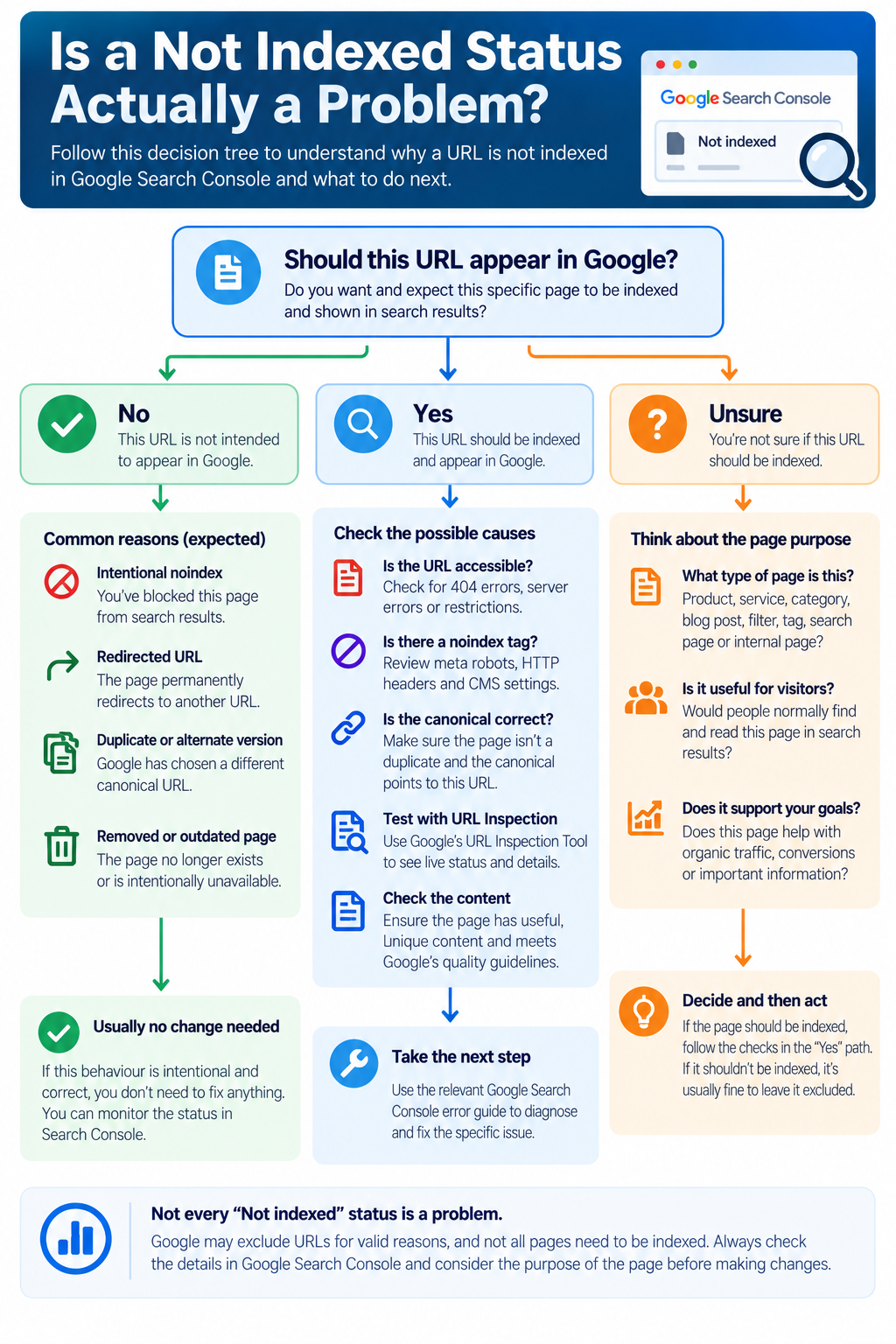
When a Search Console Warning Is Not an Error
Google Search Console reports are not a checklist of URLs that must all be indexed. Search engines normally discover redirects, duplicates, filtered URLs, removed content and intentionally private or low-value pages. The correct outcome for some of those URLs is exclusion.
Should this URL be indexed?
If no: confirm that its exclusion method is appropriate and that important internal links are not accidentally pointing users to the wrong destination. An intentionally noindexed page, a properly redirected URL or a genuinely removed page may need no SEO fix.
If yes: inspect the URL, review its accessibility, indexing directives, canonical signals and content. A page being technically indexable does not guarantee Google will choose to index it. Distinguish a crawl/access fault from a quality or canonical-selection question before changing anything.
If unsure: decide whether the page has a distinct purpose in search results. For example, a core service page and an internal search-results URL should not automatically receive the same treatment.
How to Check and Validate a Fix in Google Search Console
The Validate Fix action can request a validation process for supported report issues after the underlying problem has been corrected. It does not repair a page, guarantee indexing or immediately refresh every report. Some Search Console information changes through normal recrawling and processing without you starting validation.
Before requesting validation, confirm that the issue is actually fixed on representative affected URLs. Review the relevant report’s validation details and avoid repeated changes while Google is still processing a previous check. A failed validation means you should inspect the remaining affected examples; it does not prove that every page has the same root cause.
For individual pages, use URL Inspection to understand Google’s last known information and the available live test. If the page is suitable for indexing, a request for indexing may be available, but it remains a request rather than a promise of inclusion or a ranking improvement.
Google Search Console Validate Fix: what to expect
The phrase Google Search Console Validate Fix refers to a workflow available for certain supported issues, not a universal button for all reports. After correcting the cause, check representative affected URLs and start validation only where the report offers it. Search Console may show states such as validation started, in progress, passed or failed; wording and timing depend on the report and Google’s processing.
- Confirm the underlying issue is fixed on the live website, including the relevant template or group of URLs.
- Use URL Inspection where appropriate, but remember that a successful live test does not guarantee indexing.
- Start Validate Fix from the relevant issue report if the action is available. Do not repeatedly restart the process without a new correction.
- If validation fails, inspect remaining example URLs and whether they share the same cause. If it passes, continue monitoring indexing and search performance separately.
Validate Fix vs Request Indexing: validation checks whether a reported issue has been resolved; an indexing request asks Google to consider recrawling an eligible URL. Neither guarantees search visibility or rankings.
Official Google Search Console Diagnostic Tools
| Tool or report | What it helps establish | Important limitation |
|---|---|---|
| Page Indexing report | Indexing outcomes and issue groups | Report totals and examples may not represent every URL in real time |
| URL Inspection | Google’s information for a specific URL and live-test options | A successful test does not guarantee indexing |
| Sitemaps report | Submitted sitemap processing and retrieval messages | Submitting a sitemap does not force indexing |
| Crawl Stats report | Broad crawling trends and server response patterns | It is not a complete log of every crawl event |
| Rich Results Test | Eligibility checks for supported rich-result types | It does not validate every Schema.org type |
| PageSpeed Insights | Performance diagnostics and available user-experience data | Lab and field data differ; some URLs lack field data |
These tools help narrow the investigation; none is an automatic repair service. Search Console access depends on your verified property permissions. For security and manual actions, use the dedicated reports inside your property rather than treating them as ordinary page indexing issues.
A Practical Google Search Console Troubleshooting Workflow
Use this repeatable sequence when multiple reports show related issues. It turns Google Search Console troubleshooting into a controlled investigation instead of a series of unverified changes.
| Stage | Question | Evidence or output |
|---|---|---|
| 1. Define impact | Which valuable pages or search features are affected? | URL list, report, date range, business priority |
| 2. Reproduce | Does the problem exist now or only in older indexed data? | Live HTTP response, URL Inspection, page rendering |
| 3. Isolate | Is this a URL-specific, template-wide or site-wide problem? | Representative affected and unaffected URLs |
| 4. Correct | What verified cause should be changed? | Scoped change, backup or rollback plan |
| 5. Verify | Does the corrected URL now behave as intended? | Repeat test, internal links, canonical and indexing directives |
| 6. Monitor | Has Google processed the correction and has impact improved? | Relevant report, validation status, Search Performance trend |
Example — illustrative, not a client case: a service page disappears from Google after a CMS configuration change. URL Inspection shows a noindex directive on the live page. The team confirms the page should be indexed, removes the unintended directive in a controlled change, tests the response and canonical, then monitors Search Console. This demonstrates a diagnosis workflow, not a guaranteed indexing result.
How This Guide Should Be Maintained
Google Search Console report labels and supported validation features can change. Before relying on a specific workflow, confirm it against Google’s current documentation and the report available in your verified property. Technical changes should be reviewed by a qualified person familiar with your CMS, hosting and SEO configuration. Do not present this page as professionally reviewed unless that review has actually occurred.
When to Get Professional Help With Search Console Issues
Specialist assistance may be appropriate when important pages remain unexpectedly excluded, the same problem affects multiple templates, a server or CMS configuration change is required, or security warnings appear. You may also need help when several signals conflict — for example, a page is accessible in a browser but Google’s indexed information indicates a different canonical or access problem.
Before contacting a specialist, gather the exact Search Console message, affected URL examples, the report name, the approximate date the issue began, recent website changes and the business impact. Share screenshots with private information removed. Never send passwords or access tokens in an initial enquiry.
Prime Lion Digital provides Website Help & Solutions for technical website problems. If a Search Console issue is linked to a WordPress fault, the WordPress Errors & Fixes hub may help you identify the underlying website issue. For ecommerce-specific failures, see WooCommerce & Online Store Problems.
Frequently Asked Questions About Google Search Console Errors
What are Google Search Console errors?
They are messages or report findings about how Google discovers, crawls, indexes and presents your pages. Some identify technical problems; others describe normal indexing choices or feature-specific eligibility.
Why does Google Search Console show pages as not indexed?
Possible reasons include intentional noindex directives, duplicates, redirects, inaccessible pages and URLs Google has not selected for indexing. First establish whether each affected page is actually meant to appear in Google.
How do I find crawl errors in Google Search Console?
Review relevant Page Indexing issue groups and the Crawl Stats report, then inspect representative URLs. The correct starting point depends on whether you are investigating a specific page or a broader access pattern.
Are all 404 errors in Search Console a problem?
No. A 404 can be the correct response for a permanently removed page without a suitable replacement. Investigate important broken links, missing live content and URLs that should have moved to a relevant new address.
Why does Google Search Console say Couldn’t fetch for my sitemap?
Google may have been unable to retrieve or process the submitted sitemap. Check its exact address, HTTP response and XML content, then review the Sitemaps report. Do not assume the message identifies one specific cause.
What does Submitted URL marked noindex mean?
This wording appears in older Search Console guidance. It indicates a mismatch between a URL submitted for discovery and a noindex instruction. Check whether the page should be indexed before removing any directive.
How does Validate Fix work in Google Search Console?
For supported issues, it starts a validation process after you have corrected the underlying problem. It does not make changes to your website or guarantee that Google will index affected URLs.
When should I get professional help with Search Console issues?
Consider specialist support for security warnings, unexpected widespread exclusions, recurring server failures, complicated canonical or redirect behaviour, or changes that would affect many live pages.
How do I fix Google Search Console errors without damaging SEO?
Identify the exact report and affected URL, decide whether the reported outcome is unintended, reproduce the issue, correct only the verified cause and monitor the result. Avoid bulk canonical, robots.txt or redirect changes based solely on warning counts.
Why is Google Search Console not indexing my pages?
Possible explanations include noindex, crawling restrictions, canonical alternatives, server failures or Google’s decision not to index a crawled page. Use URL Inspection and compare affected pages with working examples; technical indexability does not guarantee inclusion.
How do I fix Google Search Console crawl errors?
Check the precise HTTP response, Crawl Stats, hosting logs and any firewall or robots restrictions. Fix confirmed access failures, especially on important URLs, instead of assuming all exclusions are crawl errors.
Why does Google choose a different canonical URL?
Google considers several signals, including page similarity, redirects, internal links, sitemap URLs and canonical declarations. Review these together before changing tags. A different selection may be expected for duplicate URLs.
How long does Google Search Console Validate Fix take?
There is no guaranteed universal timeframe. Timing depends on the issue, number of URLs, crawling and report processing. Check the report’s validation status and remaining examples rather than repeatedly submitting the same request.
Can Google Search Console errors affect rankings?
Some underlying problems can prevent important pages from being crawled, indexed or eligible for certain search features. Other reports describe expected exclusions or warnings without direct ranking impact. Assess the actual affected pages and search performance rather than assuming every error causes a ranking drop.
Get Help With Google Search Console Errors
If you have identified an unexpected problem but cannot safely isolate the cause, explore Prime Lion Digital’s website troubleshooting support. Describe the affected pages, the Search Console report and the outcome you need. A focused diagnosis is more useful than making broad technical changes simply to clear warnings.