WooCommerce & Online Store Problems
Tell us a little about what you’re looking for, and our team will be in touch to discuss how we can help.
WooCommerce problems can stop customers adding products, completing checkout, paying securely or receiving order updates. This WooCommerce troubleshooting hub helps store owners identify WooCommerce errors, understand common WooCommerce issues and choose safe first checks. If WooCommerce is not working, start with the affected customer journey or exact message—not an assumed cause. Explore checkout, payments, carts, orders, shipping, products, updates, performance and security. Some warnings and order statuses are expected behaviour rather than faults.
Find your problem | Browse problem categories | Find an error or status | Check urgency
Find Your WooCommerce Problem
There are two useful ways to begin WooCommerce troubleshooting. If you have an exact error message, use the message and status index. If you only know what has stopped working, start with the affected customer journey below. A symptom points to an area to investigate; it does not confirm the cause.
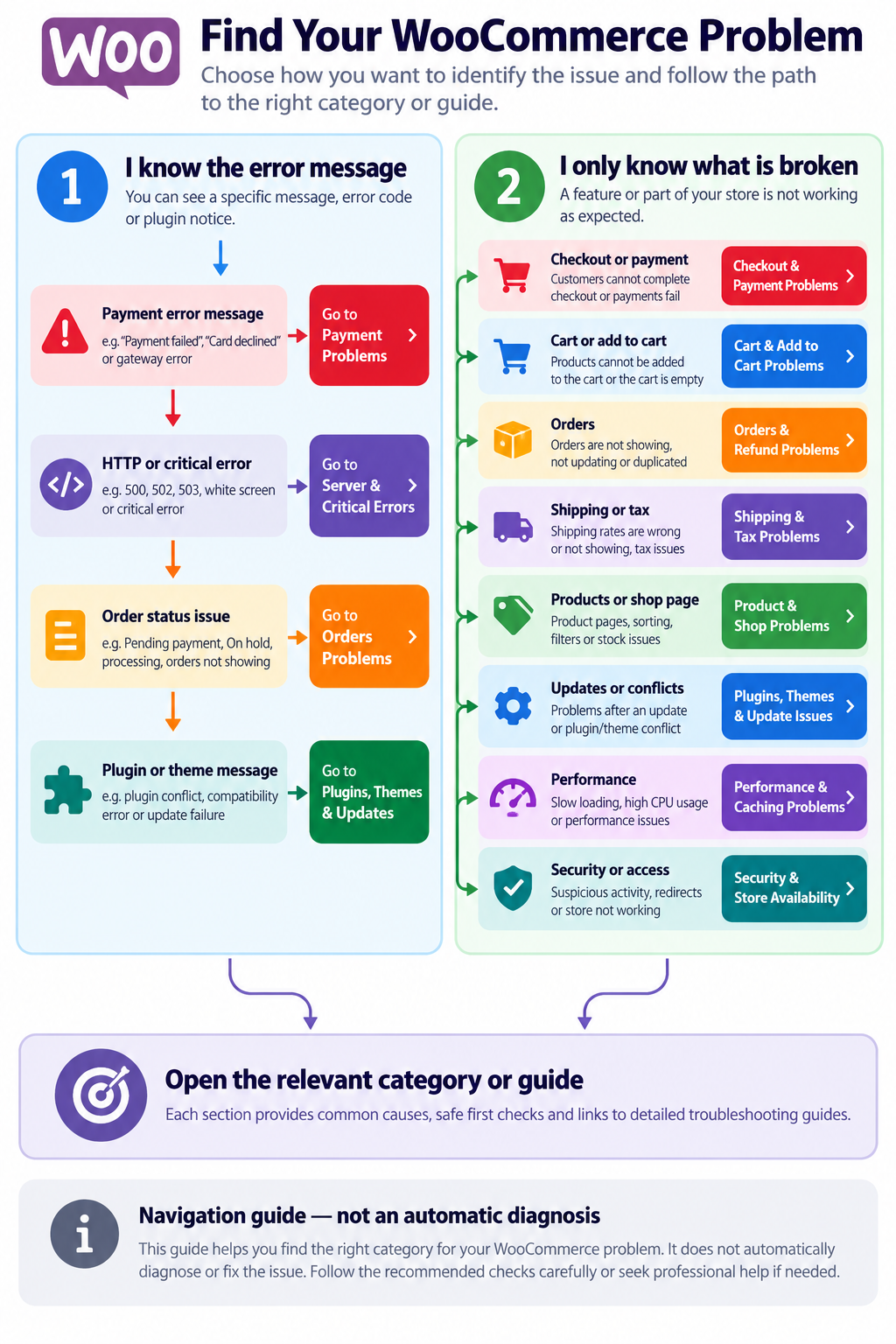
Quick WooCommerce Problem Finder: Symptom → First Check → Next Guide
Use this quick online store troubleshooting matrix to choose a route without guessing the root cause. If the problem affects payments or customer data, prioritise safe investigation over repeated live tests.
| What you see | First safe check | Next step |
|---|---|---|
| Checkout cannot finish or a payment fails | Compare the WooCommerce order with the gateway transaction; do not charge again | Checkout and payment troubleshooting |
| Add to Cart does nothing or cart empties | Note product, device, logged-in state and whether totals change | Cart troubleshooting |
| Order status appears wrong | Read order notes and check the payment provider record | Order troubleshooting |
| Shipping method missing | Confirm destination, cart contents, shipping zone and product type | Shipping and tax troubleshooting |
| Product variation unavailable | Check whether the variation is enabled, in stock and correctly configured | Product troubleshooting |
| Store breaks after an update | Record changed versions and confirm a recoverable backup | Update and conflict troubleshooting |
| Pages slow or display stale cart totals | Compare dynamic pages with cached and uncached behaviour safely | Performance troubleshooting |
| Unexpected admin or checkout activity | Preserve evidence and limit exposure through authorised procedures | Security and availability |
Store owner or developer? Owners should document the impact and avoid experimental live changes. Technical teams can use authorised logs, a staging copy and payment-provider records to investigate reproducible cases. Neither route should expose personal data or live credentials.
I Know the Error Message
Copy the wording exactly if it is safe to do so, but remove customer details, access tokens and other sensitive information before sharing it. A payment gateway message, HTTP response and WooCommerce order status require different checks. Use the error and status index.
I Only Know What Is Broken
- Customers cannot pay or complete checkout: start with checkout and payments. Check for an existing charge before retrying a payment.
- Products cannot be added or disappear from the basket: go to cart and add to cart problems.
- Orders are missing, duplicated or have unexpected statuses: see orders and refunds.
- Delivery choices or tax totals look wrong: use shipping and tax problems.
- Product pages, variations or filters fail: visit products and catalogue.
- The issue began around an update: see plugins, themes and updates.
- The site shows a server error or will not load: visit server and critical errors.
- The shop is unusually slow or behaves differently when cached: go to performance and caching.
- Customer accounts, emails or integrations are affected: see accounts and integrations.
- You suspect a compromise or the whole store is unavailable: go to security and availability and assess urgency.
Common WooCommerce Errors & Troubleshooting Guides
WooCommerce issues are easier to investigate when you separate the customer-facing symptom from the system behind it. The categories below cover common areas of an online shop. They are navigation points, not a claim that every possible WooCommerce bug has the same fix.
WooCommerce Checkout & Payment Problems
Choose this category when a customer cannot place an order, the checkout page fails to load, a payment method disappears or a transaction is declined. A broken checkout can involve the checkout form, payment gateway, session, configuration or an extension conflict. First establish whether an order was created and whether money was authorised or captured. Do not tell customers to pay again until the original transaction is reconciled.
- Checkout page not working or not completing
- WooCommerce payment failed or payment gateway error
- PayPal or Stripe checkout problems
- Missing payment methods or unexpected checkout validation
For gateway-specific investigation, read WooCommerce’s official payment error guidance.
Safe WooCommerce checkout troubleshooting steps
- Confirm whether the failure occurs before placing an order, during payment authorisation or after returning from the gateway.
- Check if an order exists and compare its ID, amount and timestamp with the provider’s transaction record.
- Identify whether the affected checkout uses the block-based or classic shortcode flow; extension compatibility can differ.
- Record the exact gateway response and check approved logs without sharing payment details or secrets.
- Reproduce only with an appropriate test environment and test credentials, then verify one complete order journey.
If WooCommerce checkout not working affects all customers, treat it as a potentially urgent sales incident. A WooCommerce payment gateway not working message does not establish whether funds were captured; reconcile first. For provider-specific WooCommerce errors, use the provider’s own guidance.
WooCommerce Cart & Add to Cart Problems
If the Add to Cart button does nothing, quantities change unexpectedly or items disappear from the basket, begin here. Note whether the issue occurs with one product, every product, a particular device or only after logging in. Cart and session behaviour can be affected by theme scripts, extensions, product settings and caching, but the visible symptom alone cannot identify which is responsible.
- WooCommerce cart not working or not updating
- Add to Cart button not working
- Empty cart after adding products
- Unexpected quantities or cart totals
If the basket works but payment fails at the next step, use checkout and payment problems instead.
Safe cart and add-to-cart checks
- Try to identify whether the symptom is limited to a product, variation, browser or customer session.
- Verify the product is purchasable and required variation options are selected.
- Document whether the cart changes before and after navigation or refresh; do not assume caching is the only cause.
- Have a developer review browser errors, WooCommerce session behaviour and relevant cache exclusions in staging.
When WooCommerce add to cart not working appears intermittent, capture a repeatable sequence rather than disabling every plugin. Some WooCommerce fixes require correcting a product setting; others need code or cache investigation.
WooCommerce Orders & Refund Problems
Use this category when an order is not visible, appears twice, remains in an unexpected state or a refund does not match the payment processor’s record. The order list, order notes and gateway transaction record provide different parts of the picture. An order marked Processing is not necessarily stuck: physical orders commonly remain there until fulfilment is completed.
- WooCommerce orders not showing or not updating
- Duplicate orders and possible duplicate charges
- Pending payment, On hold or Failed order investigation
- Refund status and payment reconciliation
See the official Troubleshooting Orders guide and the status explanations below. Never assume a WooCommerce refund status proves that a manual refund reached the customer.
Order and refund reconciliation checklist
- Locate the order by its reliable identifier, not only the customer’s name.
- Review status history, order notes, gateway transaction ID and payment capture or settlement evidence.
- Distinguish duplicate order records from duplicate financial charges before issuing a refund.
- Check whether scheduled tasks, webhooks or an external fulfilment integration failed, if applicable.
- Confirm refund completion with the payment provider; a manually recorded WooCommerce refund is not proof funds were returned.
For a single WooCommerce problem involving an unexpected order state, the correct action depends on the payment method and fulfilment workflow, not the status label alone.
WooCommerce Shipping & Tax Problems
Missing shipping options, incorrect delivery charges and unexpected tax calculations belong here. Shipping zones, destination addresses, product types, shipping classes and extension rules can change what a customer sees. A virtual product may legitimately have no shipping method. Check the affected destination and basket contents before treating the absence of delivery options as a defect.
- WooCommerce shipping not working
- Shipping rates or methods not showing
- Unexpected shipping costs or zone matching
- Incorrect or missing tax at checkout
Use WooCommerce’s core shipping troubleshooting guide for built-in shipping methods. Third-party carrier integrations may require their own documentation.
Shipping and tax diagnostic sequence
- Record a sample basket and exact delivery postcode, country and region.
- Check whether the relevant shipping zone matches that address and contains an enabled method.
- Verify whether items are virtual, require shipping or use shipping classes.
- Compare tax configuration, customer location and the intended tax treatment; seek qualified tax advice where necessary.
- For carrier plugins, review provider-specific service availability and integration logs.
If WooCommerce shipping methods not showing affects only some addresses, start with destination and zone matching before changing global store settings. Incorrect tax is a separate investigation from missing delivery rates.
WooCommerce Product & Catalogue Problems
Product-related WooCommerce website problems include unavailable product pages, broken variation selection, missing images, unexpected stock messages and shop sorting or filters that do not respond. Identify whether the problem affects one item, one product type or the entire catalogue. A missing product page is different from a visible product that cannot be purchased.
- WooCommerce product page not working or not found
- Variable product or variation selection problems
- Product sorting or filters not working
- Stock availability and catalogue display issues
If the product displays correctly but the purchase button fails, follow cart and add to cart troubleshooting.
Product catalogue checks
- Check product visibility, publish status, stock status and whether the affected URL actually resolves.
- For variable products, inspect variation attributes, prices, stock and enablement.
- Distinguish a broken product detail page from a working page with a disabled purchase action.
- Test search, filtering and sorting against the intended catalogue rules in a controlled environment.
Product display faults and purchase restrictions may look alike to shoppers but require different WooCommerce troubleshooting paths.
WooCommerce Plugin, Theme & Update Issues
WooCommerce update issues can appear after changes to the plugin, WordPress, PHP, a theme, a payment extension or a page builder. Timing is a clue, not proof of causation. Record the versions and changes involved, confirm a usable backup and investigate in staging where possible. Do not deactivate critical extensions or switch themes on a live shop without assessing the effect on orders and customers.
- WooCommerce not working after an update
- Plugin or theme compatibility problems
- Elementor and WooCommerce layout conflicts
- Unexpected WooCommerce bug following a configuration change
Follow WooCommerce’s official conflict-testing instructions in a controlled environment.
Controlled update and conflict investigation
- Record versions of WooCommerce, WordPress, PHP, active theme and the affected extensions.
- Review change history and error logs without treating timing as proof of causation.
- Confirm the staging copy is isolated from live payments, email sending and fulfilment integrations.
- Use WooCommerce’s documented conflict-testing approach on staging, changing one variable at a time.
- Recheck checkout, order creation, shipping, customer emails and other critical workflows before deploying a fix.
A reported WooCommerce bug may be a reproducible software defect, an extension conflict or a configuration problem. WooCommerce update issues should be assessed using evidence, not automatic rollbacks on a trading site.
WooCommerce Server & Critical Errors
A 500 Internal Server Error, 502 Bad Gateway, 503 Service Unavailable or WordPress critical error can make a shop inaccessible or interrupt checkout. These responses do not, by themselves, prove WooCommerce is the source. The issue may affect the whole WordPress installation, hosting environment or a particular request.
- 500, 502, 503 or 504 responses affecting store pages
- Critical error or blank page after a change
- Checkout requests timing out
- Admin access lost during an incident
For site-wide failures, use WordPress Errors & Fixes. For a payment-specific failure, preserve transaction evidence and return to checkout and payments.
Separate store failures from wider WordPress faults
- Determine whether the homepage, product pages, cart, checkout and admin all fail or only one request does.
- Capture the status code, time and request path without exposing credentials.
- Check hosting incidents and authorised server or PHP logs.
- Use the WordPress Errors & Fixes hub for site-wide issues; return to checkout guidance for transaction-specific failures.
A 500 response on checkout does not automatically establish a WooCommerce defect. Diagnose the failing layer before applying WordPress or WooCommerce fixes.
WooCommerce Performance & Caching Issues
WooCommerce performance issues may affect product browsing, cart updates, checkout responsiveness or the entire shop. Compare affected pages, devices and logged-in states before blaming hosting or a caching plugin. Checkout and cart behaviour is more sensitive to session and dynamic content than a static information page. Avoid blanket cache purges or configuration changes without a recovery plan.
- Slow WooCommerce store or checkout
- Cart totals or availability appearing out of date
- Unexpected behaviour after cache changes
- Intermittent delays under load
Record reproducible examples and distinguish a slow page from a failed transaction before making changes.
Performance investigation without breaking live sessions
- Compare product, cart, checkout and account pages; note device, geography and logged-in state.
- Separate slow server responses from large resources, browser scripting and third-party gateway delays.
- Check that dynamic cart, checkout and account content is handled appropriately by caching and CDN rules.
- Measure changes using repeatable tests and, where available, real-user data; a single speed test is not conclusive.
- Validate that improvements do not cause stale totals, lost sessions or failed payments.
WooCommerce performance issues can have different causes across catalogue and transactional pages. Avoid treating every slow checkout as a generic page-speed optimisation task.
WooCommerce Account, Email & Integration Problems
Use this route for customer login failures, account-page problems, order notifications that are not arriving or connections to external systems that stop updating. A missing order email does not automatically mean an order was never created. Check the underlying order first, then investigate the relevant email or integration path.
- WooCommerce customer account not working
- Order emails not sending or arriving
- REST API or external integration errors
- Stock, fulfilment or CRM synchronisation problems
Do not share customer information, API keys or complete logs in public support discussions.
Accounts, email and integration checks
- Check whether the customer account issue affects one user, all users or a particular browser.
- For missing emails, confirm that the order event occurred, then investigate the email delivery path and provider logs.
- For failed API or stock synchronisation, record timestamps, relevant response codes and whether scheduled tasks ran.
- Verify a corrected integration against test data before resuming normal synchronisation.
Online store problems involving email delivery or external stock systems may require a provider-specific guide rather than a WooCommerce core setting change.
WooCommerce Security & Store Availability Problems
WooCommerce security concerns include suspicious administrator activity, unexpected redirects, possible malicious changes or exposure of customer information. A store that is down may instead have a hosting or software fault, so keep availability and compromise as separate possibilities until evidence is available. Suspected unauthorised access warrants prompt containment and qualified investigation, particularly where customer or payment-related data may be at risk.
- WooCommerce store not working or completely unavailable
- Unexpected redirects or altered checkout behaviour
- Suspicious logins, users or files
- Possible customer-data exposure
Preserve evidence, avoid publishing sensitive logs and follow an incident-response process rather than making speculative changes on the live store.
WooCommerce security incident first response
- Identify whether there is evidence of unauthorised access, suspicious checkout changes or exposure of customer information.
- Preserve logs and relevant evidence, and coordinate access controls through an authorised incident process.
- Involve the host, gateway or qualified response specialist as appropriate; assess data-protection reporting obligations with competent advice.
- After containment and remediation, validate checkout integrity, access rights and key customer journeys.
WooCommerce security requires particular care because checkout integrity, customer information and payment-related systems may be involved. Do not assume that every outage is a breach, and do not erase evidence during an investigation.
Find a WooCommerce Error by Message or Status
Not every message is generated by WooCommerce itself. A browser or server error, payment-provider response and order status may look equally alarming while requiring different investigations. Match what you actually see to the closest route.
| Message, code or status | What it tells you | Start here |
|---|---|---|
| 500 Internal Server Error | A server-side request failed; the responsible component is not identified by the code alone. | Server & critical errors |
| 502 Bad Gateway / 504 Gateway Timeout | A gateway or upstream response failed or timed out; investigate the affected request and hosting context. | Server & critical errors |
| 503 Service Unavailable | The service is temporarily unavailable; impact and cause need separate confirmation. | Server & critical errors |
| “There has been a critical error on this website.” | A WordPress-level failure; not necessarily a WooCommerce-specific bug. | WordPress troubleshooting hub |
| Payment failed / transaction declined | A payment attempt did not complete as expected; wording varies by provider. | Checkout & payments |
| Pending payment / On hold | Order workflow statuses that can be expected in some payment situations. | Order status guidance |
| Processing / Completed | Fulfilment stages; Processing is not automatically a technical failure. | Order status guidance |
| Draft | May be a temporary checkout record when using block-based checkout. | Order status guidance |
If you have a gateway-specific error code, retain its exact wording and check the documentation for that payment provider. A generic message index cannot replace the provider’s transaction record.
Which WooCommerce Problems Need Urgent Attention?
Prioritise online store problems according to actual customer impact, payment integrity, security and data risk. A minor-looking error affecting every checkout may be more serious than a dramatic server warning on a non-essential test page.
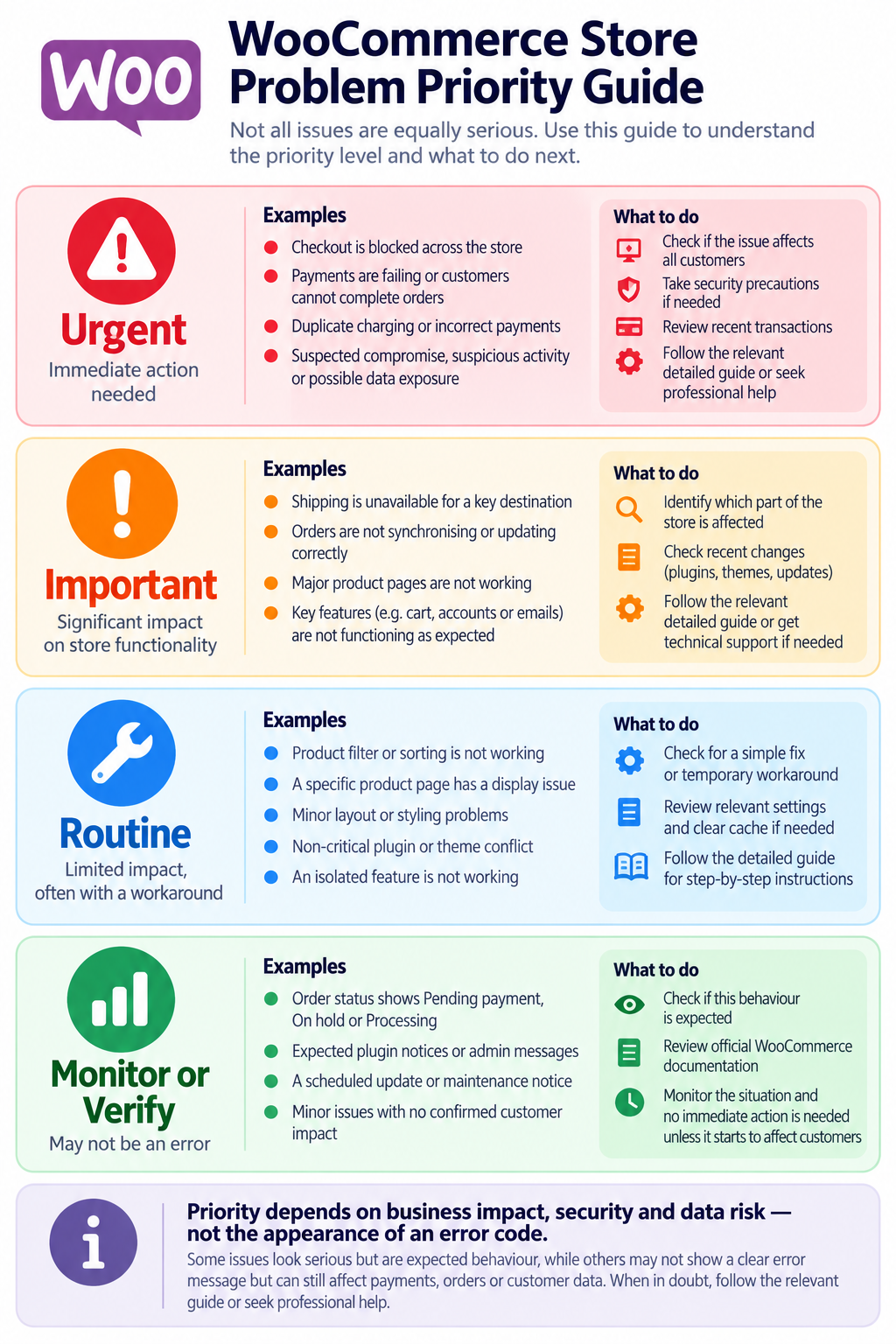
Urgent — Protect Payments, Customers and Data
Examples include checkout failures affecting customers, suspected duplicate charges, widespread store downtime, unauthorised access or possible data exposure. Record the impact, preserve transaction and security evidence, avoid risky live changes and involve the appropriate technical or payment-provider support promptly.
Important — A Key Store Function Is Impaired
Examples include shipping methods missing for a major delivery area, unreliable order synchronisation or essential products that cannot be purchased. Investigate the affected workflow and whether a safe temporary alternative exists.
Routine — Limited Impact With a Workaround
An isolated sorting issue, minor layout defect or problem affecting a non-essential feature may be scheduled for controlled investigation, provided the effect is genuinely limited.
Monitor or Verify — It May Not Be a Fault
An On hold order awaiting bank transfer, a Processing order awaiting dispatch or a Draft checkout record can be normal. Confirm the expected workflow before attempting a fix.
WooCommerce Troubleshooting: Safe First Checks
- Describe the symptom precisely. Record the affected page, device, browser, time, customer journey and any exact message. Avoid collecting unnecessary personal data.
- Check whether sales or payments are affected. For suspected payment failures, compare the WooCommerce order with the gateway’s transaction record before requesting another attempt, fulfilling an order or issuing a refund.
- Note recent changes. Updates, new extensions, theme edits, payment settings and hosting changes may provide context, but correlation is not proof.
- Confirm backup and recovery options. Ensure a recent usable backup, appropriate access and a practical rollback plan before technical intervention.
- Prefer staging for disruptive tests. Plugin deactivation, theme switching, major updates and payment configuration experiments can affect live customers. Keep test transactions separate from real payments.
- Use authorised diagnostic information. WooCommerce System Status, relevant logs and order notes can narrow the investigation. Redact customer information, credentials and API secrets before sharing.
- Verify the outcome. Test the affected customer journey safely, confirm order and payment records agree, and monitor for recurrence.
These checks are intended to help you choose a safe route, not to replace a detailed fix guide. Do not edit a production database, disable security controls or repeatedly submit real payments simply to test a hypothesis.
After a WooCommerce Fix: Verify the Entire Buying Journey
A technical correction is not complete until the original symptom and related customer workflows have been tested safely. Use a suitable staging or authorised test setup and confirm that test payments cannot be mistaken for real orders.
- Product selection and variations behave as expected.
- Add to Cart, quantities, shipping and tax totals are consistent.
- Checkout completes using the intended test method.
- Order creation, payment evidence and order status agree.
- Customer notifications and fulfilment integrations work as intended.
- Relevant mobile and desktop experiences are checked, and the original error does not recur.
Keep a short change record and rollback plan. A single successful page load does not demonstrate that an online store is operating correctly.
When a WooCommerce Status Is Not an Error
Some WooCommerce issues are actually misunderstandings of the order lifecycle. Status labels describe where an order stands; they do not automatically diagnose the payment provider or indicate a malfunction.
| Order status | Typical meaning | When to investigate |
|---|---|---|
| Draft | A temporary checkout record, including in block-based checkout flows. | If unexpected drafts accompany customer-facing checkout failures or other evidence of disruption. |
| Pending payment | An order has been received but payment has not been completed. | If the gateway confirms payment but the order remains unpaid, or customers repeatedly cannot complete payment. |
| On hold | Payment confirmation or capture may still be required, depending on the method. | If confirmation is overdue relative to the gateway’s expected process. |
| Processing | Payment has generally been received and fulfilment is pending. | If the order should have moved on under the store’s actual fulfilment process. |
| Completed | The order has been marked fulfilled. | If the record does not match actual fulfilment or payment evidence. |
| Failed | The payment attempt failed or was declined. | Check the gateway and order notes before any retry or customer instruction. |
| Refunded | A refund has been recorded in WooCommerce. | Confirm the payment processor has actually returned funds, particularly for manual refunds. |
For precise definitions and exceptions, consult WooCommerce Order Statuses. Extensions and payment providers may introduce additional states or behaviour.
Official WooCommerce Troubleshooting Tools & Resources
These resources help gather evidence and understand supported workflows. None automatically identifies or repairs every problem.
- WooCommerce System Status Report: review installed versions, environment information, settings and compatibility clues. Typically accessed by an authorised administrator under WooCommerce > Status. A warning in a report is not automatically the root cause.
- Troubleshoot Payment Errors: distinguish gateway-specific failures, order notes and logging. Access to provider records may be needed to establish whether funds moved.
- Troubleshooting Orders: investigate unexpected statuses, duplicate orders and payment/fulfilment discrepancies. Order notes help explain events but should be compared with external transaction evidence.
- Troubleshooting Core Shipping: check built-in shipping zones, methods and rates. It does not replace documentation for every third-party carrier extension.
- Plugin and Theme Conflict Testing: understand controlled isolation of extension conflicts. Use staging and backups rather than disruptive experiments on a trading shop.
If the fault affects WordPress outside the shop, see WordPress Errors & Fixes for wider website troubleshooting.
When to Get Professional WooCommerce Help
Specialist assistance is sensible when customers cannot complete purchases, payments and order records disagree, a security incident is suspected, a critical function fails repeatedly or safe investigation requires hosting, code or gateway access you do not have. Professional diagnosis should begin with evidence, not a speculative series of live changes.
When contacting a specialist, prepare the affected URL, exact error wording, approximate start time, recent changes, WooCommerce and WordPress versions if known, relevant redacted screenshots, and a description of the business impact. Do not email passwords, live payment keys or unredacted customer records.
For broader website troubleshooting and support, explore Prime Lion Digital’s Website Help & Solutions. The appropriate scope and cost depend on the fault and investigation required.
How Prime Lion Digital Can Help
Prime Lion Digital’s Website Help & Solutions service is the appropriate enquiry route for assessment of checkout failures, plugin conflicts, performance concerns and other WooCommerce website problems. The required work depends on access, the affected integrations and the confirmed cause. No repair outcome or response time is guaranteed before the issue has been assessed.
Request a review: Share the affected store URL, a redacted error message, when the issue began and whether sales, orders or customer information may be affected. Never send passwords or payment keys in an ordinary contact form.
Frequently Asked Questions About WooCommerce Problems
What are the most common WooCommerce problems?
Common areas include checkout and payment failures, cart issues, unexpected order statuses, missing shipping options, product-page faults, extension conflicts and slow store performance. Start with the affected customer journey rather than assuming every symptom has one cause.
Why is WooCommerce not working on my website?
The problem may involve WooCommerce settings, a theme or extension, hosting, a payment integration, caching or the underlying WordPress site. First determine whether the entire website is unavailable or only a specific store function has stopped working.
How do I troubleshoot WooCommerce checkout errors?
Identify where checkout fails, whether an order was created and whether a payment was authorised or captured. Record the exact message and check the relevant gateway documentation. Avoid repeated real payment attempts until you have reconciled the first transaction.
Why are WooCommerce payments failing?
Payment failures can involve gateway configuration, customer authorisation, provider responses, checkout conflicts or connectivity. The WooCommerce order status alone may not show the full transaction history, so compare order notes with the payment provider’s record.
What should I check when WooCommerce orders are not updating?
Check the current order status, payment method, order notes and expected fulfilment process. Some statuses require manual action or delayed confirmation. Investigate a mismatch only after confirming what the status should be for that order.
Can WooCommerce plugin updates cause problems?
Updates can expose compatibility problems, but a failure appearing after an update does not prove the update caused it. Record versions and recent changes, maintain a backup and test suspected conflicts in staging where possible.
Do all WooCommerce order statuses indicate an error?
No. Draft, Pending payment, On hold and Processing can reflect normal stages of checkout, payment confirmation or fulfilment. Investigate when the status conflicts with payment evidence, the expected workflow or actual customer experience.
When should I contact a WooCommerce specialist?
Seek help promptly for widespread checkout failure, possible duplicate charging, suspected compromise or significant data risk. Support is also useful when the cause remains unclear or diagnosis would require unsafe changes to a live store.
How do I fix WooCommerce checkout not working?
First establish whether an order and payment attempt already exist. Check the exact failing step, gateway record and checkout configuration. Avoid repeated real charges; use authorised test transactions and the checkout diagnostic steps.
Why is WooCommerce Add to Cart not working?
Check the affected product, variation requirements, session and browser behaviour. Product settings, scripts, extensions and caching may all be relevant. Follow the cart troubleshooting checklist before changing live settings.
Why are WooCommerce shipping methods not showing?
Confirm the customer’s destination, shipping-zone match, basket contents and whether products require delivery. Carrier plugins may have separate rules or outages. Use the shipping diagnostic sequence.
How should I investigate a WooCommerce bug after an update?
Record exact versions and changes, inspect authorised diagnostics and test suspected conflicts one at a time in staging. A change occurring before a failure does not prove it caused the failure.
What if my WooCommerce store is not working but WordPress still loads?
Identify the affected shop journey—products, cart, checkout, payments or orders—and use that category. If the wider website also fails, investigate WordPress and hosting separately.
What should I do if a customer may have been charged twice?
Stop repeat-payment requests and reconcile the order records with gateway transaction IDs, authorisations and captured charges. Coordinate any correction with the payment provider rather than assuming duplicate WooCommerce orders equal duplicate charges.
Can common WooCommerce errors affect SEO?
Yes. Persistent product-page errors, inaccessible URLs, broken navigation and slow experiences can affect discoverability or user experience. Checkout-only faults may primarily harm conversions rather than indexing. Evaluate the specific affected pages and duration.
Are online store troubleshooting steps the same for every WooCommerce setup?
No. Checkout type, gateway, theme, extensions, hosting and fulfilment systems change the diagnostic path. A generic checklist is a starting point, not a substitute for environment-specific investigation.
Get Help With WooCommerce & Online Store Problems
Still dealing with WooCommerce errors or an online store problem you cannot safely isolate? Describe what customers are experiencing, which pages are affected and whether payments or orders may be involved. Prime Lion Digital can help you explore the appropriate next step through its Website Help & Solutions service.
If the issue involves a suspected duplicate payment or security incident, prioritise transaction verification and evidence preservation before making further changes.